Dataset Integrations
Import test data from external observability and dataset platforms directly into your collections
Dataset integrations connect elluminate with external data sources, allowing you to import existing datasets from observability platforms and evaluation tools. Instead of manually recreating test data, you can pull datasets directly from platforms where you already store production data or curated test sets.
Why Use Dataset Integrations?
Leverage Existing Data
If you're already using other platforms to collect production data or curate evaluation datasets, you don't need to recreate that work in elluminate. Import directly and start evaluating.
Keep Data in Sync
When your external datasets evolve, you can re-import to update your collections with the latest test cases.
Supported Providers
Langfuse
Langfuse is an open-source observability platform for LLM applications. Langfuse datasets allow you to curate test inputs and expected outputs for evaluation.
What You Need:
- Public Key - Your Langfuse project's public API key
- Secret Key - Your Langfuse project's secret API key
- Base URL - The Langfuse API endpoint (default:
https://cloud.langfuse.com)
You can find these credentials in your Langfuse project settings under "API Keys".
Setting Up an Integration
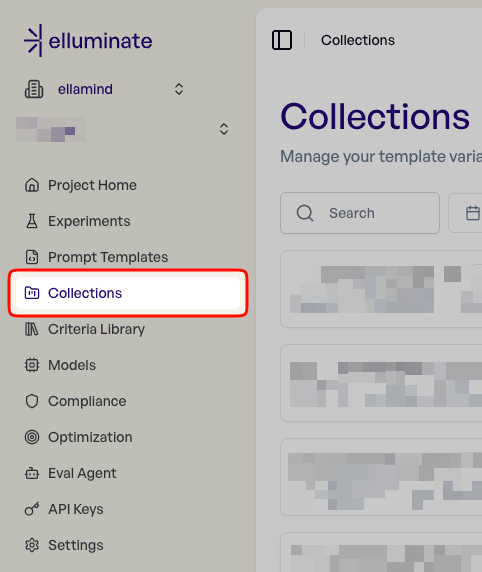
Step 1: Navigate to Project Collections
Open your project and navigate to the Collections page.
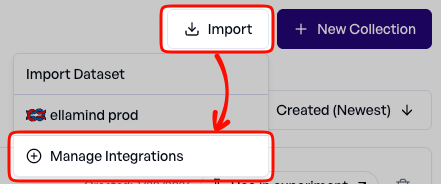
Step 2: Go to Integration Management
Click "Import", then "Manage Integrations" to open the integration management page.
Step 3: Add an Integration
Click "Add Integration" to open the integration management dialog.

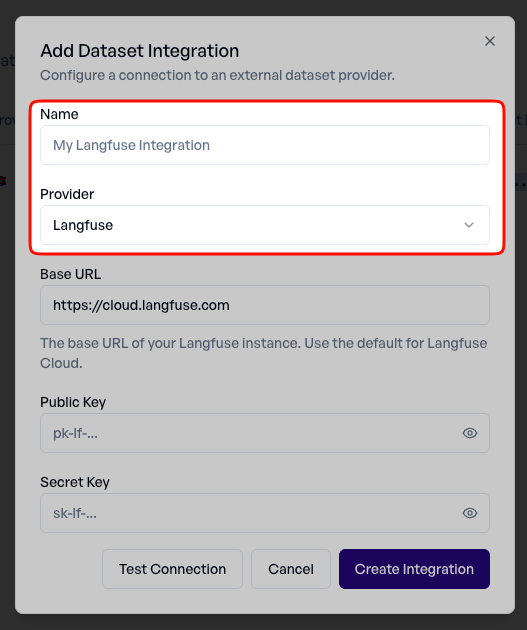
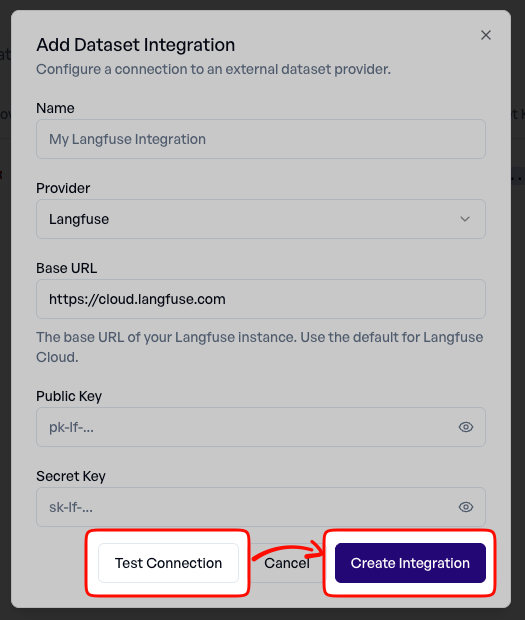
Step 3: Set a name and select the Provider
Choose a name for your integration to remember it by. Then choose your dataset provider from the available options. Currently, Langfuse is supported.
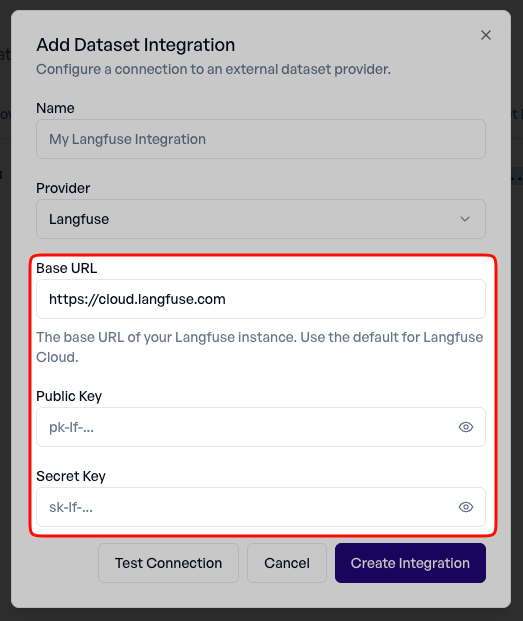
Step 4: Enter Credentials
Fill in your API credentials:
- Base URL - The API endpoint (use the default unless you're self-hosting)
- Public Key - Your provider's public API key
- Secret Key - Your provider's secret API key
Step 5: Test the Connection and Save it
Click "Test Connection" to verify your credentials work correctly. The system will attempt to connect to the provider and confirm access.
Once the connection test passes, save your integration. It's now ready to use for importing datasets.
Importing a Dataset
After setting up an integration, you can import datasets into your collections.
Step 1: Go to Collections
Navigate to the Collections page in your project.
Step 2: Start the Import
Click the "Import" button to open the import dialog.
Then choose which integration to import from. You'll see all configured integrations for your project.

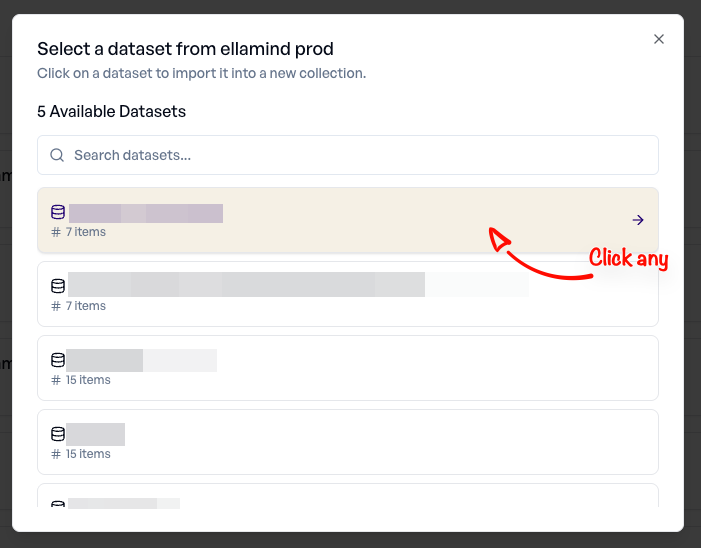
Step 3: Choose a Dataset
The system fetches available datasets from your provider. Select the dataset you want to import.
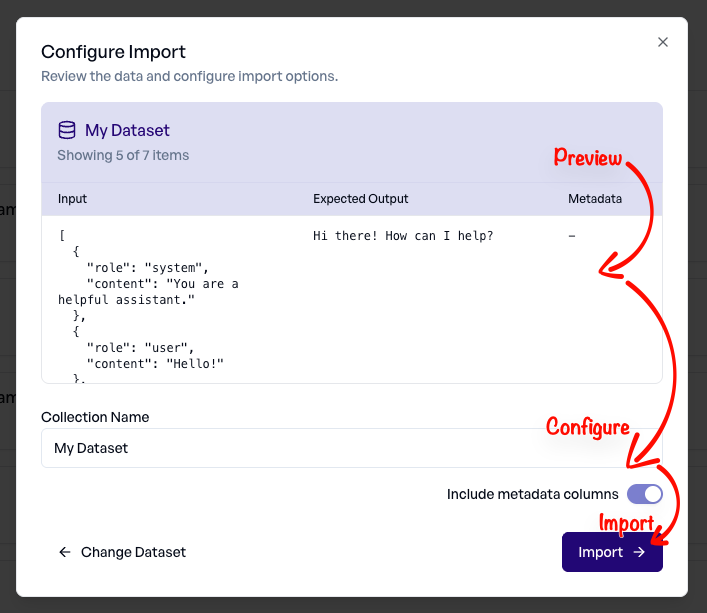
Step 5: Preview the Data
Review the dataset contents before importing. This shows you how the data will be structured in your collection.
Step 6: Configure Import Options
Optionally configure how the data should be imported:
- Choose which fields to include
- Map fields to collection columns
Step 7: Complete the Import
Click "Import" to create your collection with the external dataset.
How Data is Mapped to Collections
When importing from external providers, elluminate automatically maps the data to collection columns based on the structure of your source data.
Input Field Mapping
String Input:
If the dataset item's input is a simple string, it becomes an input column.
Dictionary Input:
If the input is a dictionary/object, each key becomes a separate column.
Source: {"question": "What is 2+2?", "context": "Math basics"}
Result: question column = "What is 2+2?"
        context column = "Math basics"
Conversation Input:
If the input is an OpenAI format compatible conversation object, it will be imported as a proper conversation object for use with our conversation features.
Source: [{"role": "user", "content": "What is 2+2?"}]
Result: conversation column = [{"role": "user", "content": "What is 2+2?"}]
Expected Output Mapping
The expected output from your dataset (if present) maps to an expected_output column:
Metadata Mapping
If your dataset items contain metadata, it's preserved in a metadata column as JSON:
Source metadata: {"source": "manual", "difficulty": "easy"}
Result: metadata column = {"source": "manual", "difficulty": "easy"}
Example Mapping
| Source Field | Collection Column | Type |
|---|---|---|
| input (string) | input | Text |
| input.question | question | Text |
| input.context | context | Text |
| expected_output | expected_output | Text |
| metadata | metadata | JSON |
Managing Integrations
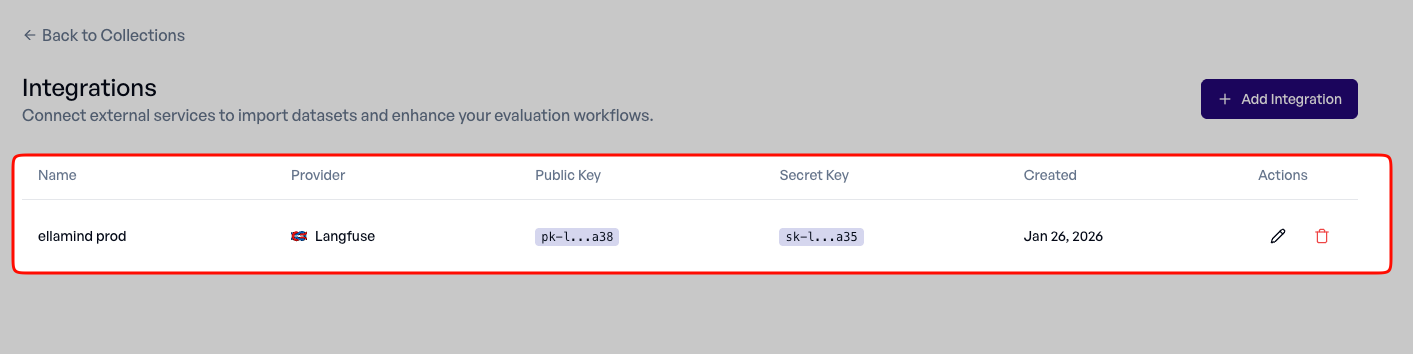
View Existing Integrations
Access your configured integrations from the Collections page. Each integration shows:
- Provider type (e.g., Langfuse)
- Connection status
- When it was created
Edit Integration Credentials
To update an integration's credentials:
- Navigate to Collections -> Import -> Manage Integrations
- Find the integration you want to edit
- Click the edit (pencil icon) button
- Update the credentials
- Test the connection
- Save changes
Delete an Integration
To remove an integration:
- Navigate to Collections -> Import -> Manage Integrations
- Find the integration you want to delete
- Click the delete (trash icon) button
- Confirm the deletion
Deleting Integrations
Deleting an integration does not delete any collections that were imported using it. Those collections remain in your project.
Security
Credential Storage
Your API keys are encrypted at rest using industry-standard encryption. They are never stored in plain text.
Credential Visibility
After you save an integration, your secret keys are never displayed again in the UI. Only identifier slugs are shown to help you recognize which credentials are configured.
Access Control
Only project members with appropriate permissions can:
- Configure integrations (Admin, Editor)
- Import datasets (Admin, Editor)
- View integration settings (Admin, Editor, Viewer)
- Delete integrations (Admin)
Troubleshooting
Connection Test Fails
Invalid Credentials:
- Double-check your public and secret keys
- Ensure you're using the correct API keys for your project (not organization-level keys)
- Verify the keys haven't been revoked or expired
Wrong Base URL:
- If you're using a self-hosted instance, ensure the base URL is correct
- The URL should not include a trailing slash
- Ensure the URL is accessible from the internet
Network Issues:
- Check if your provider's service is operational
- Verify there are no firewall rules blocking the connection
No Datasets Found
- Ensure you have datasets created in your external provider
- Check that your API keys have permission to read datasets
- Some providers require datasets to have at least one item to be visible
Import Fails
- Verify the dataset has data (empty datasets cannot be imported)
- Check that the data format is supported
- Review the error message for specific details
Future Providers
The dataset integrations feature is designed to be extensible. Additional providers may be added based on user demand and platform compatibility.
If you'd like to request support for a specific provider, please contact support with details about your use case.