API Key Management
Learn how to securely create, manage, and use API keys for platform authentication
API keys are essential for authenticating your requests to the elluminate platform. This guide covers best practices for managing your API keys securely.
Note: only project admins have access to the "API Keys" page under Settings.
Creating API Keys
- Click Settings in the sidebar, then API Keys
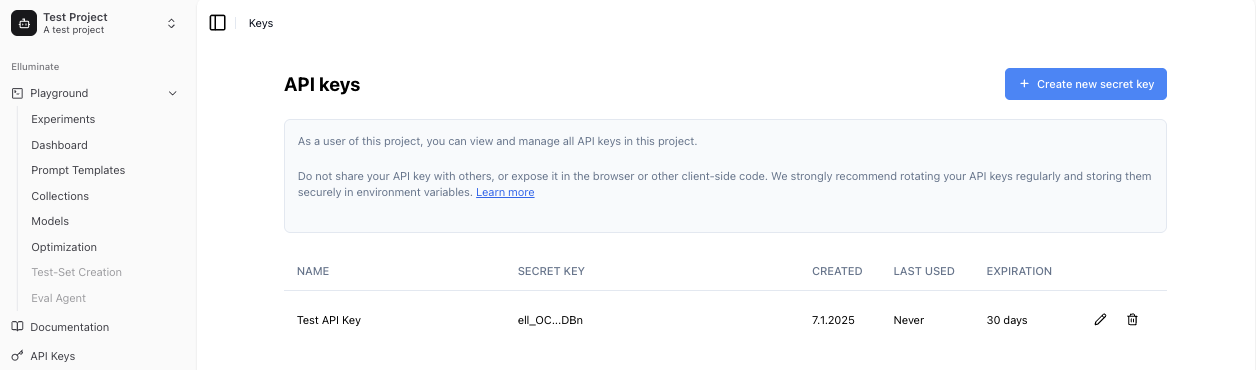
- Click Create new secret key
- Enter a descriptive name for your key
- Choose a lifetime (30, 90, 180 or 365 days). A secret lives at most one year; to keep a key longer, rotate it
- Choose the scope: Read & write (default) or Read-only for integrations that only fetch data
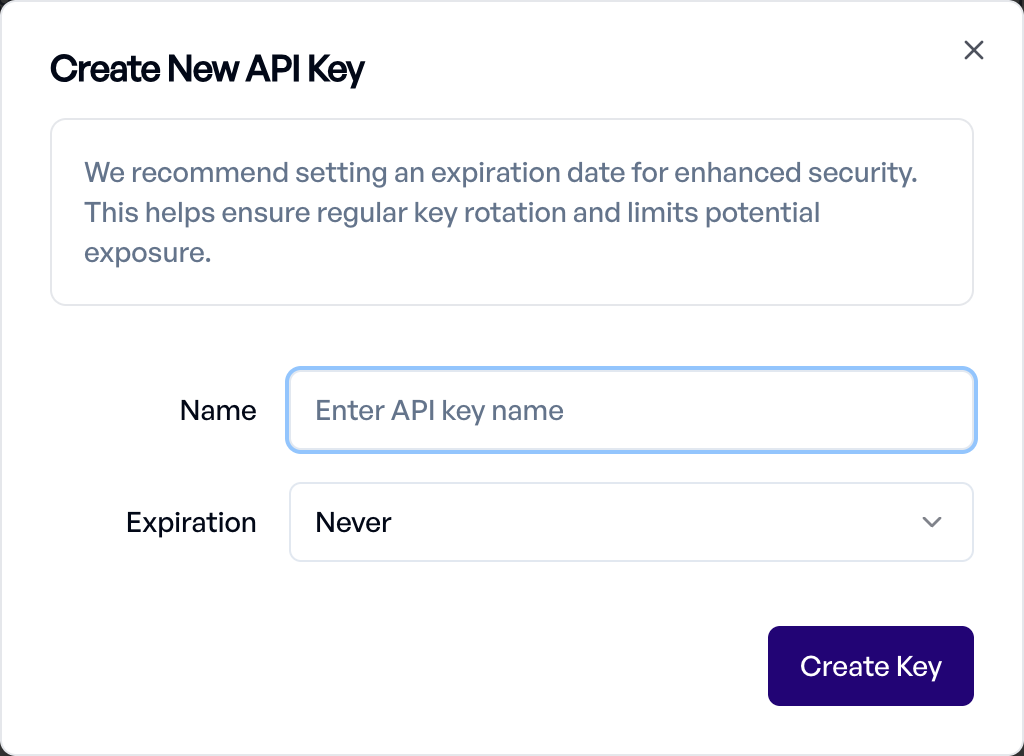
- Save your key securely - it will only be shown once
Security Best Practices
Store Securely
- Use environment variables to store API keys
- Never commit API keys to version control
- Don't expose keys in client-side code or browser
- Keep keys out of logs and error messages
Regular Rotation
- Rotate keys on a regular schedule with the Rotate action: the key keeps its name and scope, gets a new secret with the lifetime you choose, and the old secret stops working immediately
- Create new keys before old ones expire
- Remove unused or expired keys
Access Control & Key Management
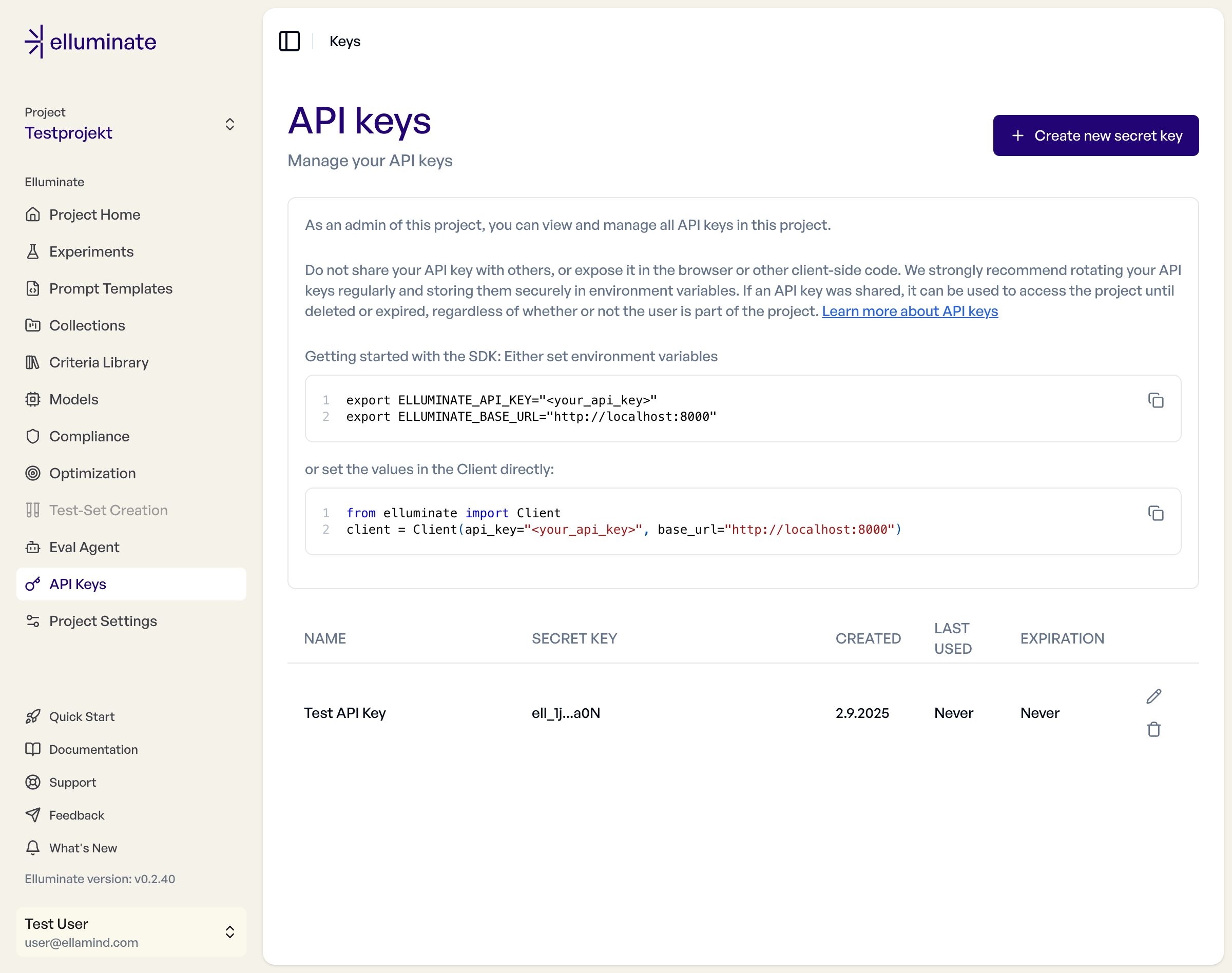
- Find all your active keys
- See when keys were last used
- Check expiration dates and scopes
- Edit key names and scopes, or shorten a key's lifetime
- Delete/revoke keys
A key acts on behalf of the admin who created it, or who last rotated it. It stops working when that person loses access to the project or is deactivated, and it never grants more than the creator's current project role (a key created by a user who later becomes a project guest turns read-only). Creating, rotating, editing and deleting keys is recorded in the organization's audit log.
Using API Keys
You can use your API key by exporting it as an environment variable:
Or you can set the API key as a parameter in the client:
For more details on using the SDK, see our SDK Quick Start.
Troubleshooting
If you encounter issues with your API key:
- Verify the key hasn't expired
- Check if the key has been revoked or rotated
- A
403 API key has read-only accessresponse means the key has read-only scope or its creator is a project guest - A
401 API key owner no longer has access to this projectresponse means the creator left the project; create a new key - Ensure you're using the correct project ID
- Confirm the key is being sent correctly in requests