Compliance Assistant¶
Guided EU AI Act technical documentation for your AI systems
The Compliance Assistant provides a guided workflow for creating and maintaining the technical documentation required by the EU AI Act. It combines a structured documentation workspace with an AI assistant that helps you classify your system, fill in the required sections, import existing documents, check the quality of your documentation, and export it as a complete Annex IV technical documentation PDF.
Beta Feature
The Compliance Assistant is currently in beta. Features and workflows may change as we refine the experience based on user feedback.
The Workspace¶
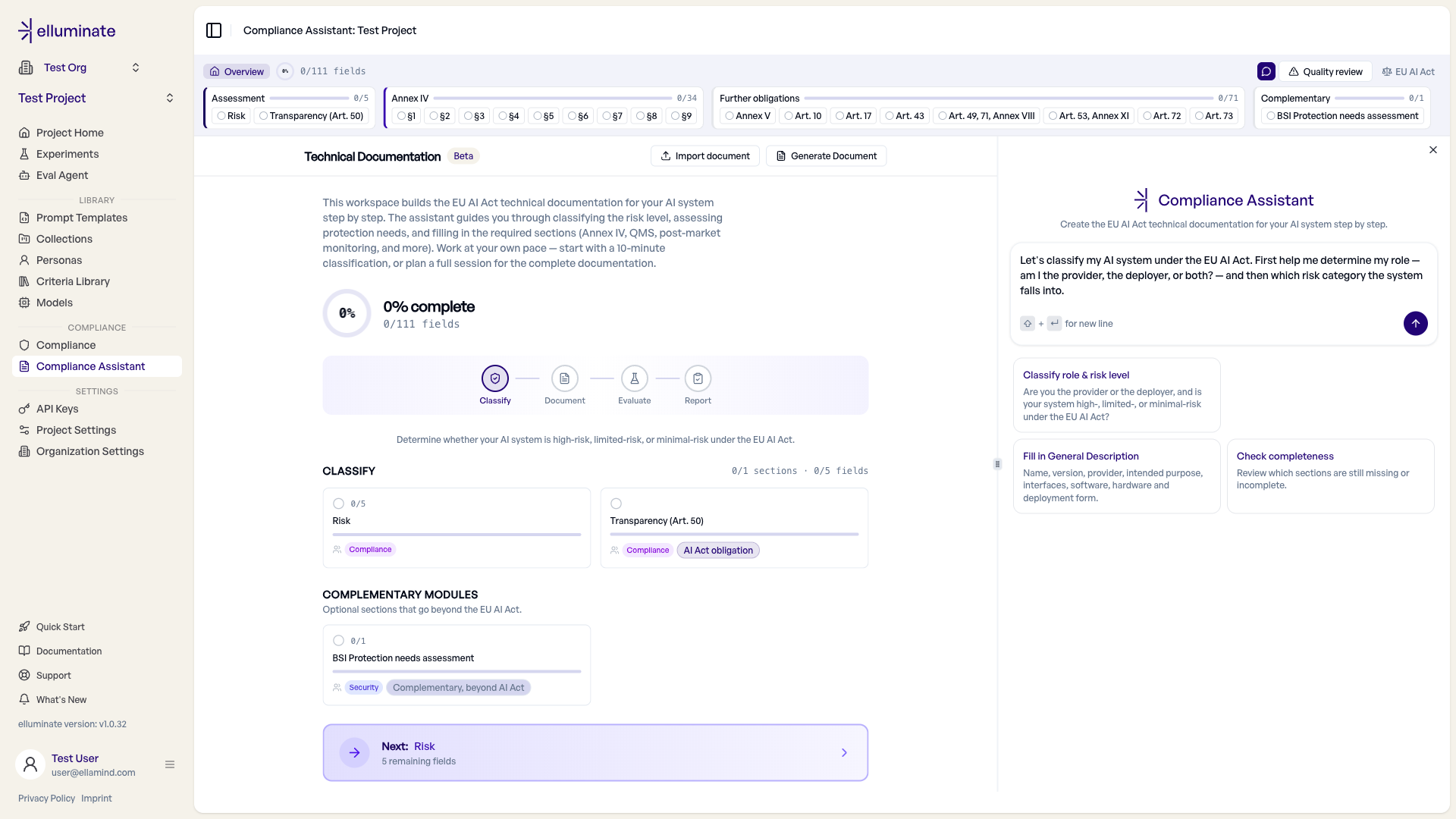
Navigate to Compliance → Compliance Assistant in your project sidebar. The workspace consists of two resizable panels:
- Technical Documentation (left) — the documentation work area: progress dashboard, section editors, and quality review
- Compliance Assistant (right) — an AI chat assistant that answers questions, classifies your system, and fills documentation fields for you; collapsible when you want to focus on the document
The header above the documentation panel gives you quick access to the Overview dashboard, your overall progress, section chips for jumping directly to any section, the Quality review, the EU AI Act regulation browser, Import document, and Generate Document. Once the risk classification is complete, a requirement filter (All / Recommended / Required) appears.
The Documentation Workflow¶
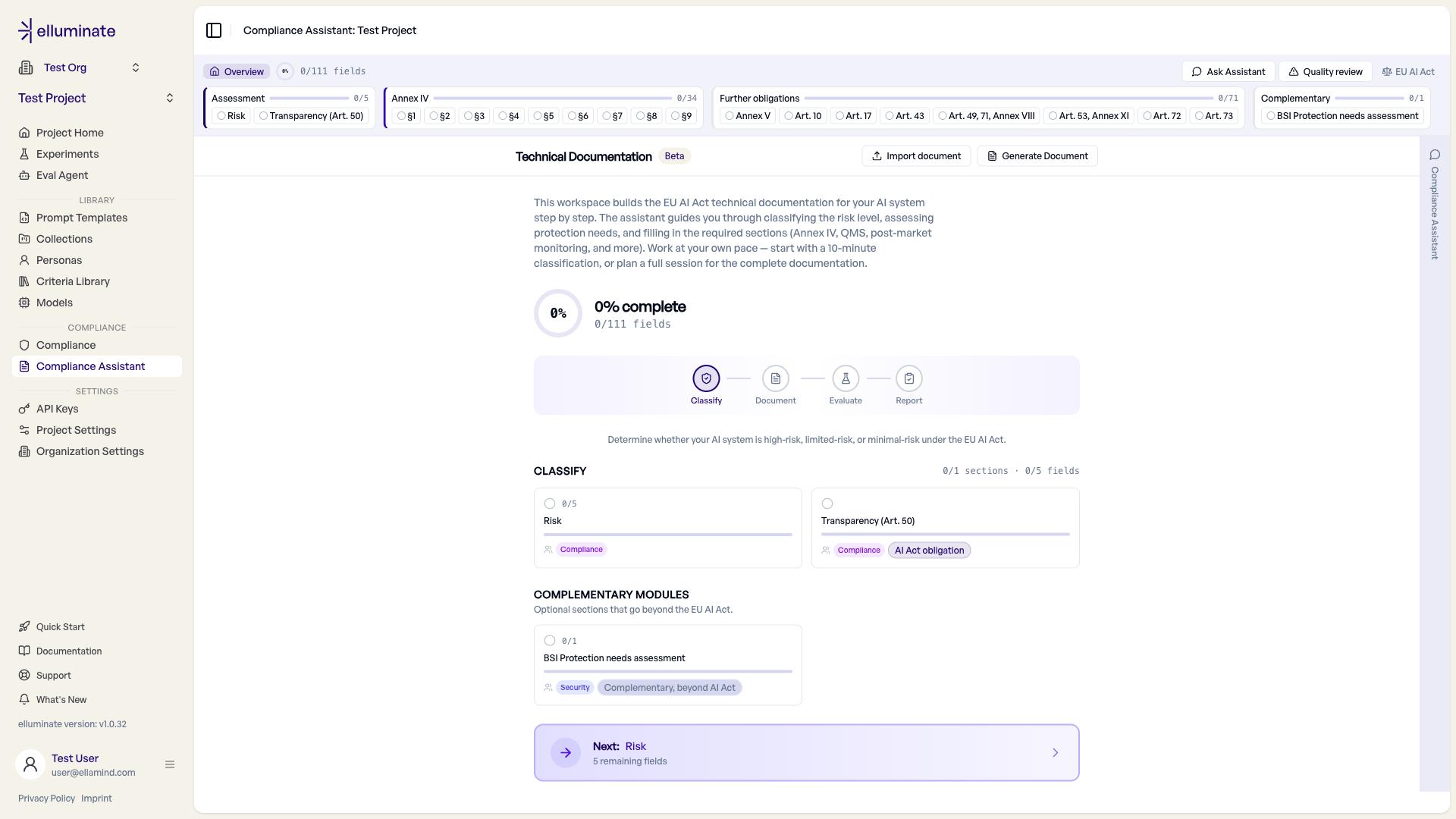
The Compliance Assistant guides you through four phases:
- Classify — Determine your project role and the system's risk level
- Document — Fill in the documentation sections required for your classification
- Evaluate — Run compliance tests against your system
- Report — Generate and download the technical documentation
The Overview dashboard shows these phases as a stepper, together with your completion percentage, any mandatory gaps, and a suggested next step.
Phase 1: Classify¶
Classification comes first because it determines which sections and fields are required: a high-risk provider must document substantially more than a minimal-risk deployer.
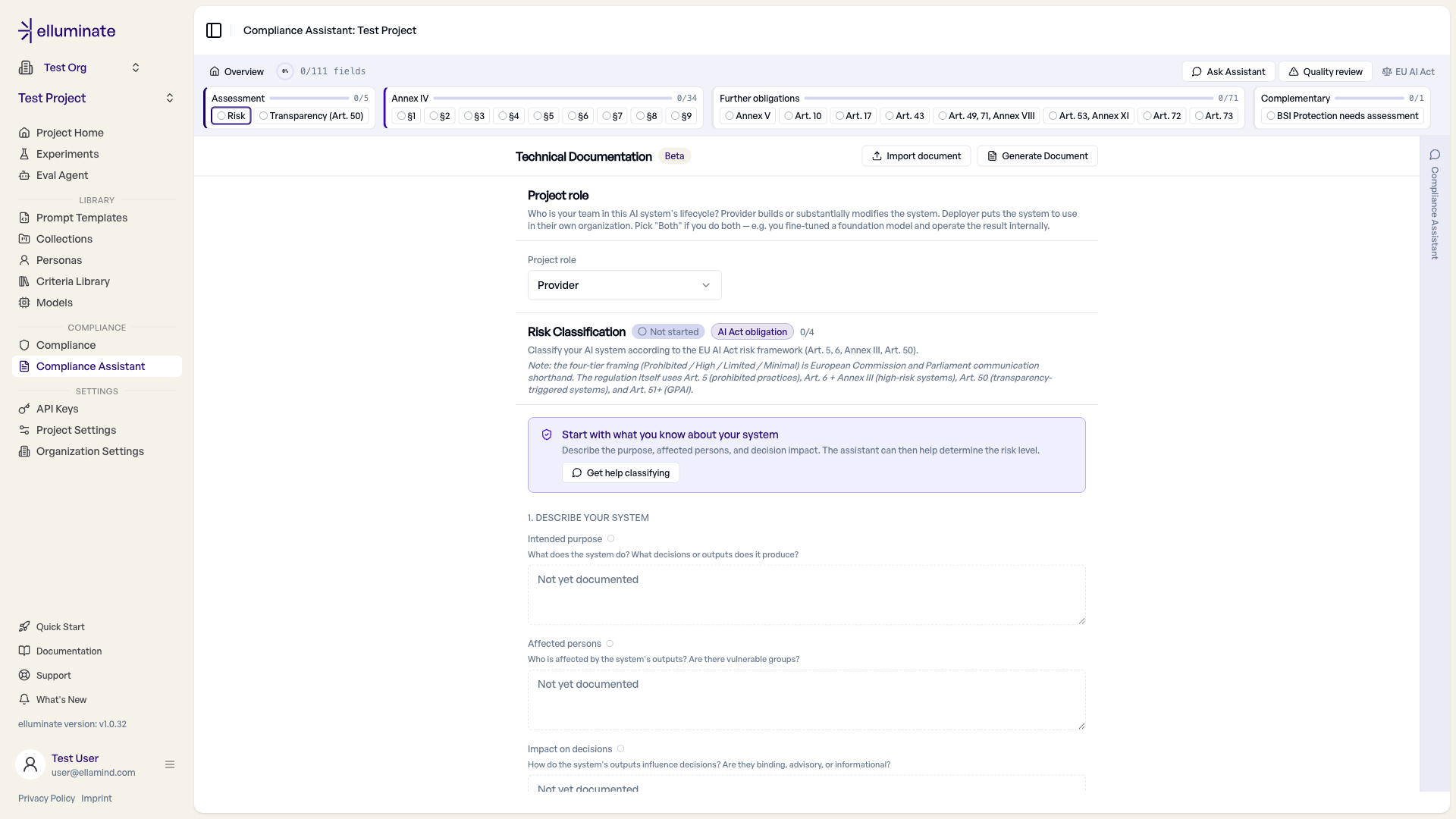
Project Role — Select the role your organization has for this AI system:
| Role | Meaning |
|---|---|
| Provider | You develop the AI system or place it on the market under your own name |
| Deployer | You use an AI system under your authority within your organization |
| Both | You develop the system and deploy it yourself |
Sections that are not relevant for your role are hidden. If you select Deployer but your answers indicate that you substantially modified a high-risk system, the assistant points out that you may have become the provider (Art. 25(1)(c)).
Risk Classification — Describe your system (intended purpose, affected persons, impact on decisions), then select the risk level and document your classification reasoning:
| Risk Level | Meaning |
|---|---|
| High Risk | The system falls under one of the high-risk categories of the EU AI Act (e.g., Annex III use cases) |
| Limited Risk | The system is subject to transparency obligations but is not high-risk |
| Minimal Risk | No specific obligations under the EU AI Act |
Prohibited Practices
Practices prohibited under Art. 5 (e.g., social scoring) are not a selectable risk level — such systems may not be placed on the market at all. The risk classification step explains this in a disclaimer.
Transparency (Art. 50) — A separate assessment card covers the transparency obligations of Art. 50: whether they apply to your system, which triggers are relevant (interaction with humans, synthetic content, emotion recognition or biometric categorisation, deepfakes, AI-generated text on matters of public interest), and how you fulfill them. Transparency obligations apply cumulatively — a high-risk system can also be subject to Art. 50.
BSI Protection Needs Assessment — A complementary module (beyond the EU AI Act) for assessing protection needs following BSI IT-Grundschutz across Confidentiality, Integrity, and Availability, each rated Low / Medium / High, plus an overall protection level.
DPIA Hint
When your classification indicates high risk or high confidentiality needs, the assistant shows a hint that a Data Protection Impact Assessment (Art. 35 GDPR) is likely required. This is an informational heuristic, not an additional documentation section.
Phase 2: Document¶
The documentation is organized into groups of sections. Which sections appear — and which fields are required — depends on your role and risk level:
| Group | Contents |
|---|---|
| Assessment | Project role, risk classification, and transparency (Art. 50) |
| Annex IV | The nine sections of the technical documentation (§1–§9): general description, development, monitoring, performance, risk management, changes, standards, conformity, post-market plan |
| Further obligations | EU Declaration of Conformity (Annex V), Data Governance (Art. 10), Quality Management System (Art. 17), Conformity Assessment (Art. 43), EU Database Registration (Art. 49, 71, Annex VIII), GPAI Model Documentation (Art. 53, Annex XI), Post-Market Monitoring (Art. 72), Serious Incident Reporting (Art. 73) |
| Complementary | BSI Protection needs assessment |
Which modules are visible depends on your role: with the Deployer role, provider-specific modules are hidden and deployer-specific ones appear instead, such as Deployer Obligations (Art. 26) and the Fundamental Rights Impact Assessment (Art. 27).
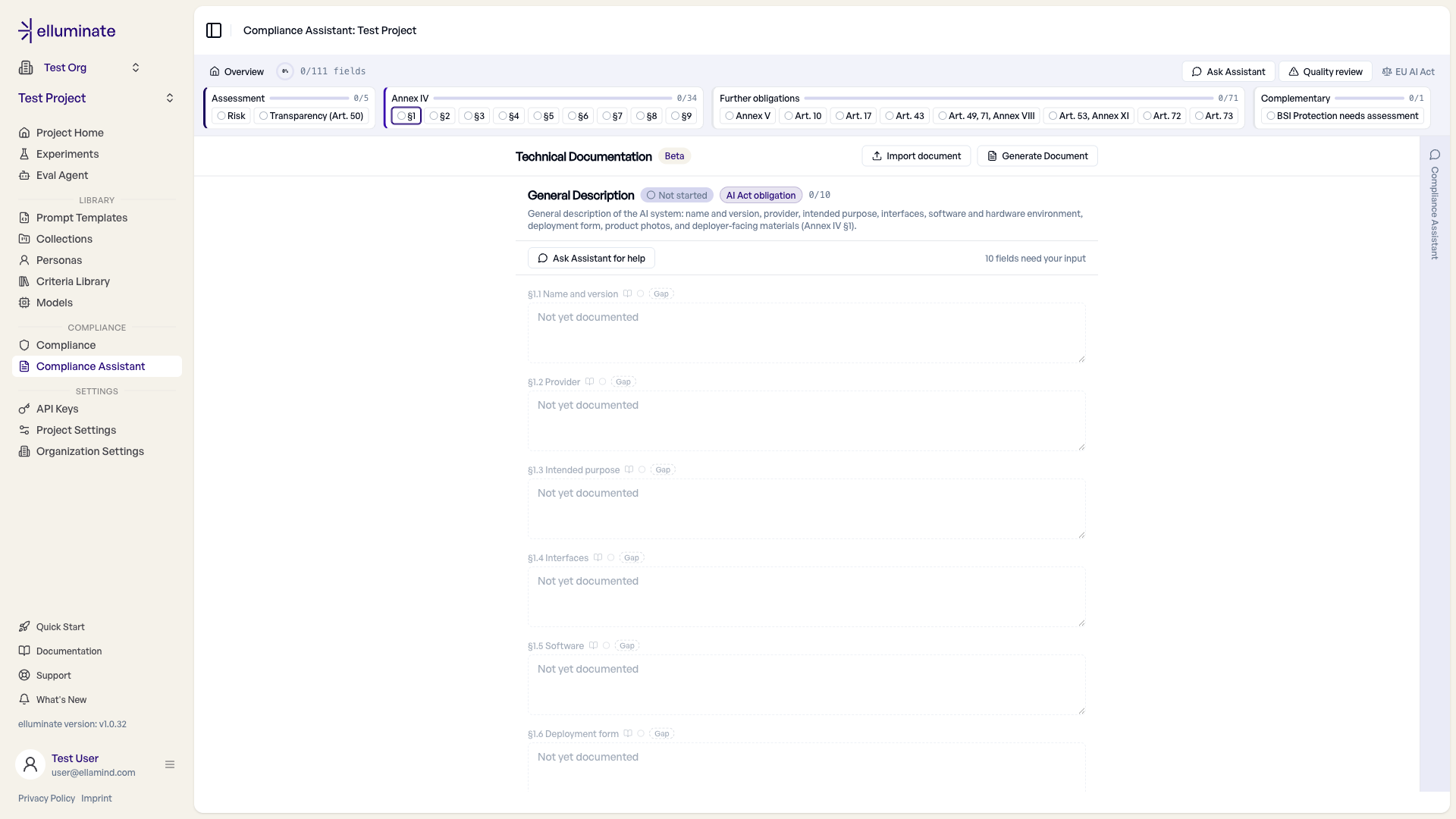
Every field carries a requirement level derived from your classification — Required, Recommended, or Not required — and each section shows its status (Not started / In progress / Complete). Empty fields display "Not yet documented"; the header filter lets you focus on required or recommended fields only.
There are several ways to fill in content:
- Edit directly — Every field is an editable text area with auto-save. A Clear field button resets a field.
- Ask the assistant — Describe your system in the chat; the assistant proposes content for the relevant fields, which you accept or reject directly in the chat (see Reviewing Proposed Changes).
- Import a document — Extract content from existing documentation (see Importing Documents).
- Pre-fill from Annex IV — Derived modules (e.g., the Declaration of Conformity) can reuse content you already entered in Annex IV.
- Use compliance test results — When compliance evaluations exist in the project, their results can be referenced as performance evidence.
Phase 3: Evaluate¶
The Evaluate phase links to the Compliance feature, where you run compliance test packages against your system. Completed evaluations can be used as evidence in the performance section of your documentation.
Phase 4: Report¶
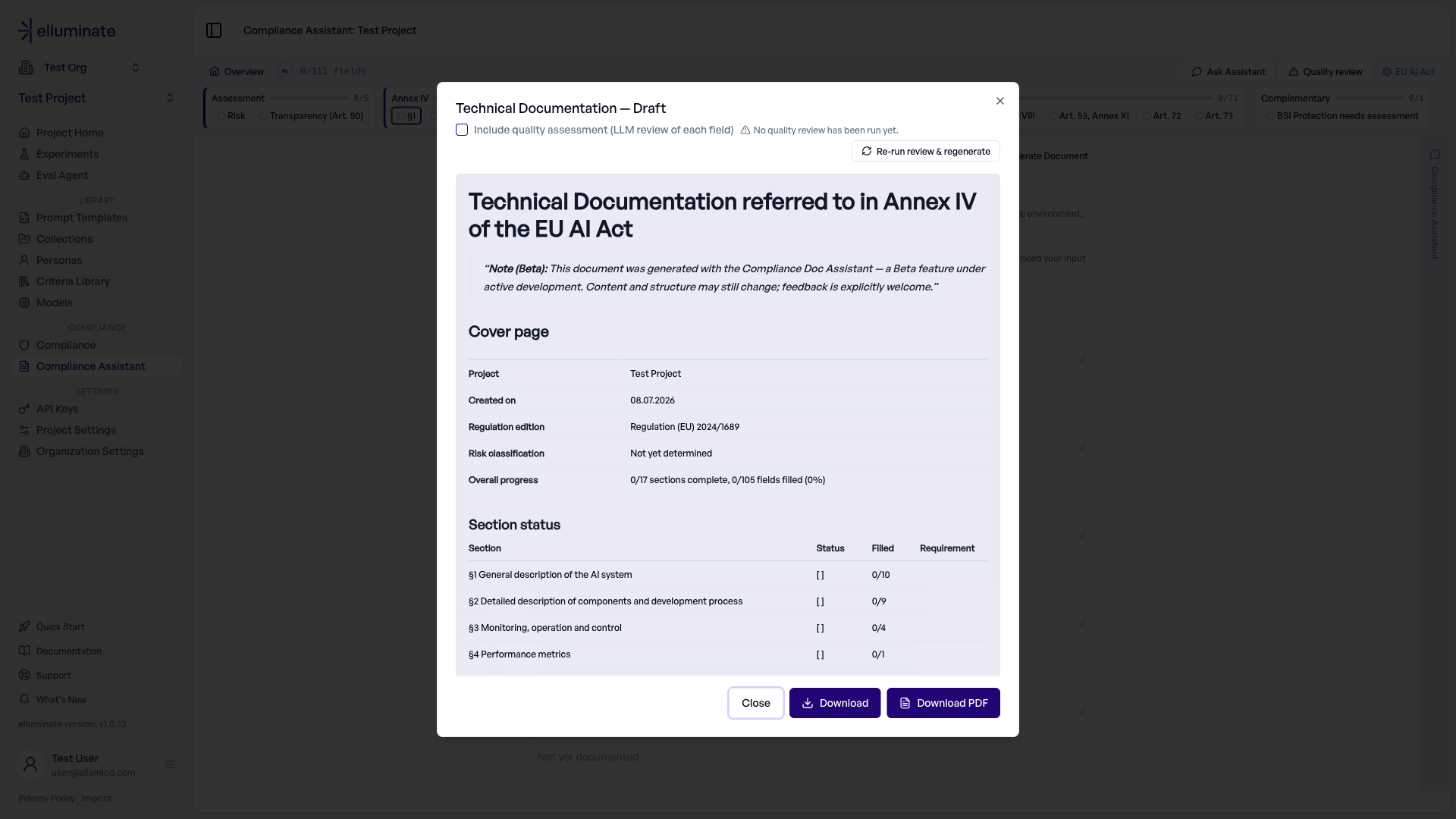
Click Generate Document to render the technical documentation. A preview opens, starting with a cover page (project, creation date, regulation edition, risk classification, overall progress) followed by a per-section status table and the documented content. From the preview you can:
- Download — Save the document as Markdown
- Download PDF — Save the document as a formatted PDF
- Include quality assessment — Optionally append an LLM-based quality review of each field to the document
The generated document follows the language of the user interface — switch the UI to German for a German document, or to English for an English one.
The Chat Assistant¶
The chat panel is a compliance-aware AI assistant. It suggests context-dependent next steps and can:
- Classify your system — It asks about your system and sets the project role, and helps you reason about the risk level
- Fill documentation fields — Describe your system in your own words; the assistant maps the information to the right sections and fields and proposes the changes for your review
- Answer regulatory questions — e.g., "What determines my risk level?" or "What would change my risk level?"
- Review your documentation — e.g., "Check for contradictions" or "Check completeness"
Conversations are saved per project — you can start new chats, search previous ones, and continue where you left off.
Reviewing Proposed Changes¶
When the assistant proposes a field change, it is not saved immediately. Instead, a Proposed change card appears in the chat below the assistant's answer, showing the affected section and fields as a before/after comparison — removed text appears red and struck through, added text green. Cleared fields show the old value struck through, followed by an (empty) marker. Click Accept to save the change or Reject to discard it, without leaving the chat; the buttons become available once the answer has finished streaming. A decided proposal shows an Accepted or Rejected badge, which persists across page reloads. Progress and completion update only after you accept.
Outdated Proposals
If the section was edited elsewhere after the proposal was made, the card shows an outdated hint. You can still accept the proposal — it then overwrites the current values with the proposed ones. Direct edits in the section editors are unaffected by this flow and still save immediately, as does the document import.
Importing Documents¶
If documentation for your system already exists (e.g., a system description, an architecture document, or an existing technical documentation), you can import it instead of retyping it:
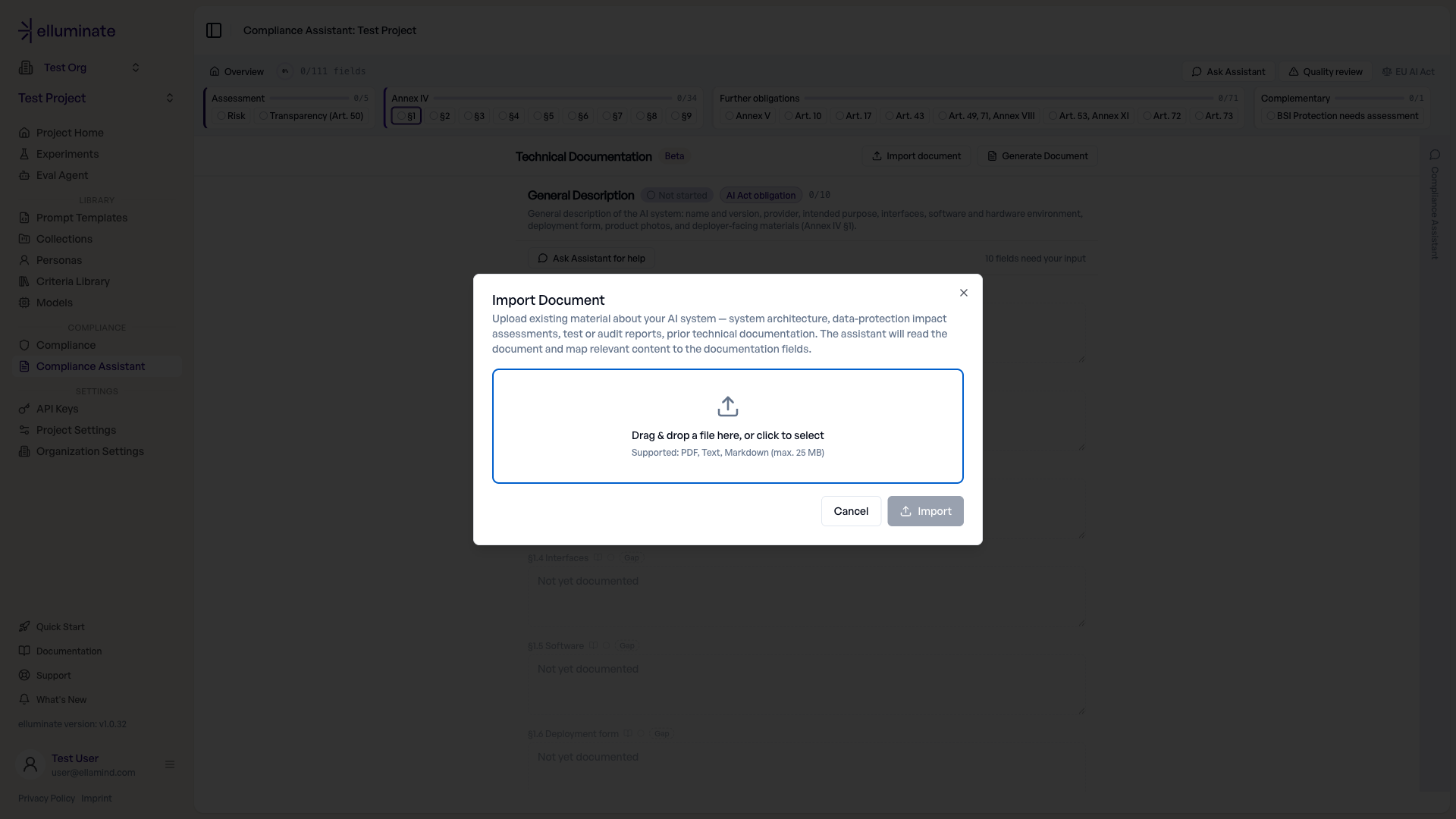
- Click Import document in the documentation panel header
- Upload existing material about your AI system — system architecture, data-protection impact assessments, test or audit reports, prior technical documentation. Supported formats: PDF, Text, Markdown (max. 25 MB)
- The assistant analyzes the document and extracts facts into documentation fields
- Review the Extracted Fields preview, grouped by what the import changes (risk classification, protection needs, deployer obligations, documentation content)
- Select which values to apply — fields that already contain content are deselected by default so imports don't overwrite your work
The import only writes documentation content. It never sets your project role or risk level — those remain your explicit decisions. If imported content touches the risk classification section, the assistant prompts you to review whether your protection needs assessment is still accurate.
Import Safety Checks
The import warns you when a document appears to contain manipulated content (prompt injection) and when the system name in the imported document does not match your project. If you import before confirming your project role, the dialog asks for the role first and warns you afterwards, because the extraction is filtered by role and content relevant to other roles may not have been extracted.
Quality Review¶
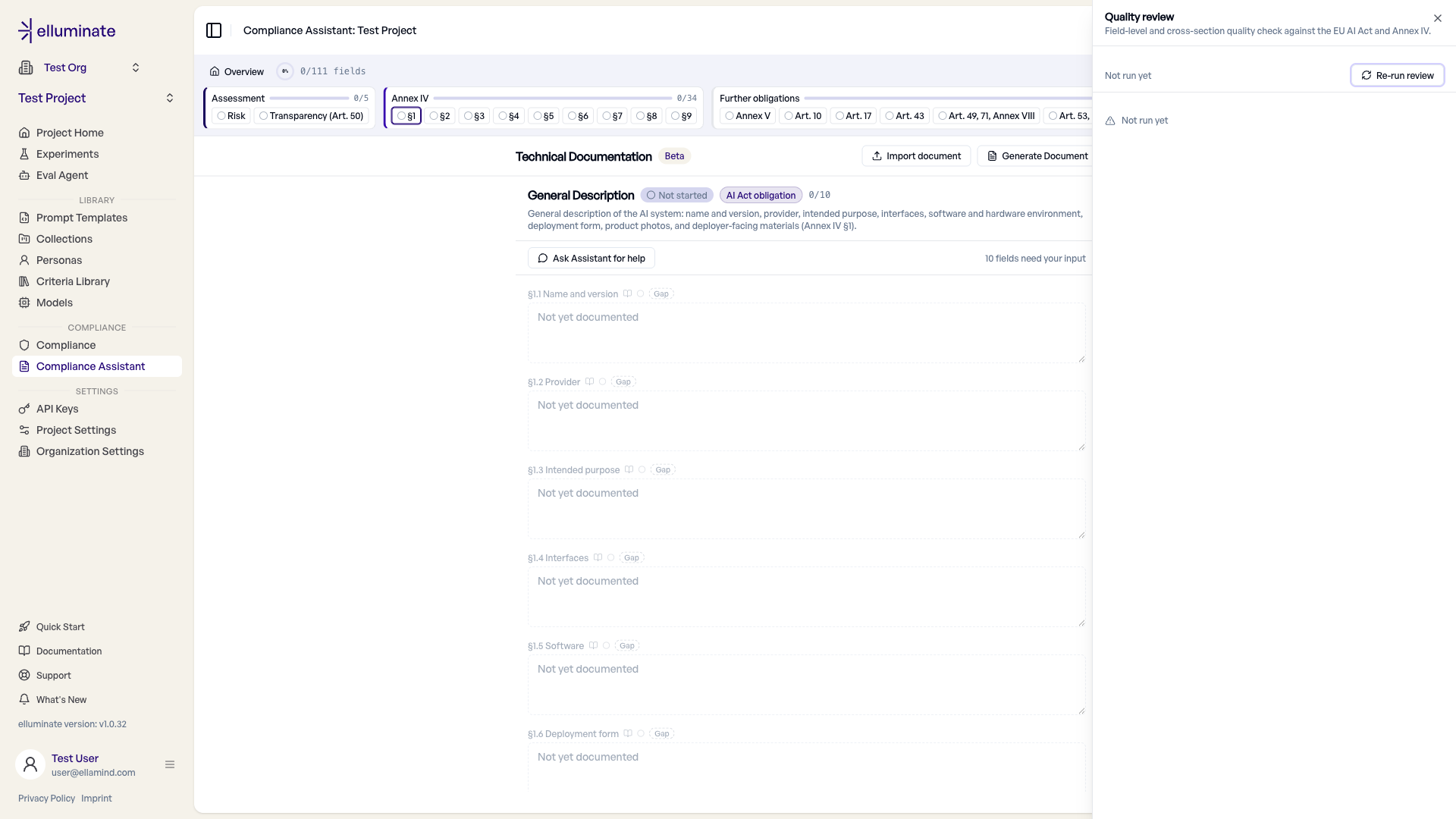
Click Quality review in the header to check your documentation for consistency and completeness. The review produces an overall verdict:
| Verdict | Meaning |
|---|---|
| Consistent | No significant issues found |
| Notes available | Improvement suggestions exist |
| Significant gaps | Required content is missing or contradictory |
The review combines several checks:
- Mandatory gaps — Deterministic checks for required content that is missing (also shown on the Overview dashboard)
- Cross-section findings — Consistency checks between related sections, e.g., risk classification ↔ risk management system, role ↔ obligations, training data ↔ affected persons
- Field-level findings — Individual fields rated Sufficient / More details recommended / Insufficient
- Required sections not started — A list of required sections without any content
For field-level findings, the review panel shows a concrete improvement suggestion for each flagged field. You can Accept or Skip each suggestion individually, or apply all open suggestions at once with Accept all remaining — a counter shows how many suggestions have been handled. Accepted values are saved immediately and marked as originating from the quality review. When information is genuinely missing, the panel shows an Open question instead — Answer in chat prefills the question into the chat so you can answer it directly.
When you change documentation content after a review, the verdict is marked "May be outdated" — click Re-run review to refresh it. The generated document can include the field-level quality assessment as an appendix.
The Regulation Browser¶
Click EU AI Act in the header to open a searchable regulation browser with the articles, annexes, and recitals of the EU AI Act — useful for looking up the legal basis shown next to sections and fields.
Regulation Edition
The regulation corpus reflects Regulation (EU) 2024/1689 as originally adopted. Amendments proposed after adoption are not yet included.
Notes¶
- The Compliance Assistant supports you in preparing your technical documentation. It does not replace a legal review of your obligations under the EU AI Act.
- All documentation content is stored per project and can be edited at any time.