Organizations
Organizations provide a centralized workspace for teams to collaborate across multiple projects, manage billing, and control access at the organizational level.
By managing all your projects and team members from a single, centralized workspace, you gain complete visibility and control over your entire operation.
Working with Organizations
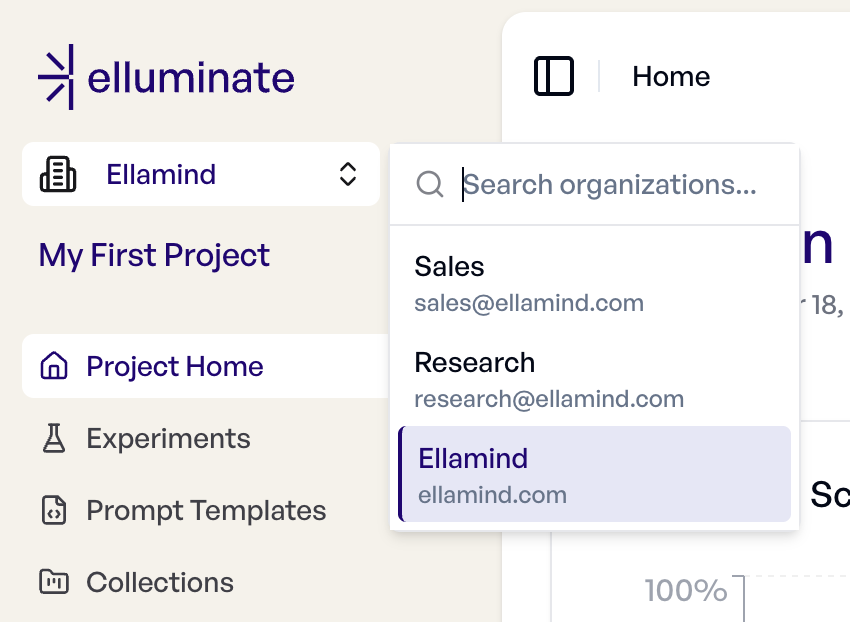
Each organization maintains its own set of projects and team members, providing a clean, centralized workspace for collaboration. Your account can belong to multiple organizations, and you can seamlessly switch between them using the organization switcher at the top of the sidebar.
Organization Settings
Organization configuration is managed under Settings > Organization Settings, shown only to Owners and Admins. Here you can customize your organization's name and description, as well as view a comprehensive overview of all projects and their members.
Only models hosted in Europe shows whether your organization is limited to models hosted in Europe. When it is on, the model list only offers those models, and requests with any other model are refused. Your own LLM configs count only after ellamind has confirmed that their endpoint is hosted in Europe; changing a config's endpoint removes the confirmation. ellamind manages this setting; to change it, send a written change request.
User Management
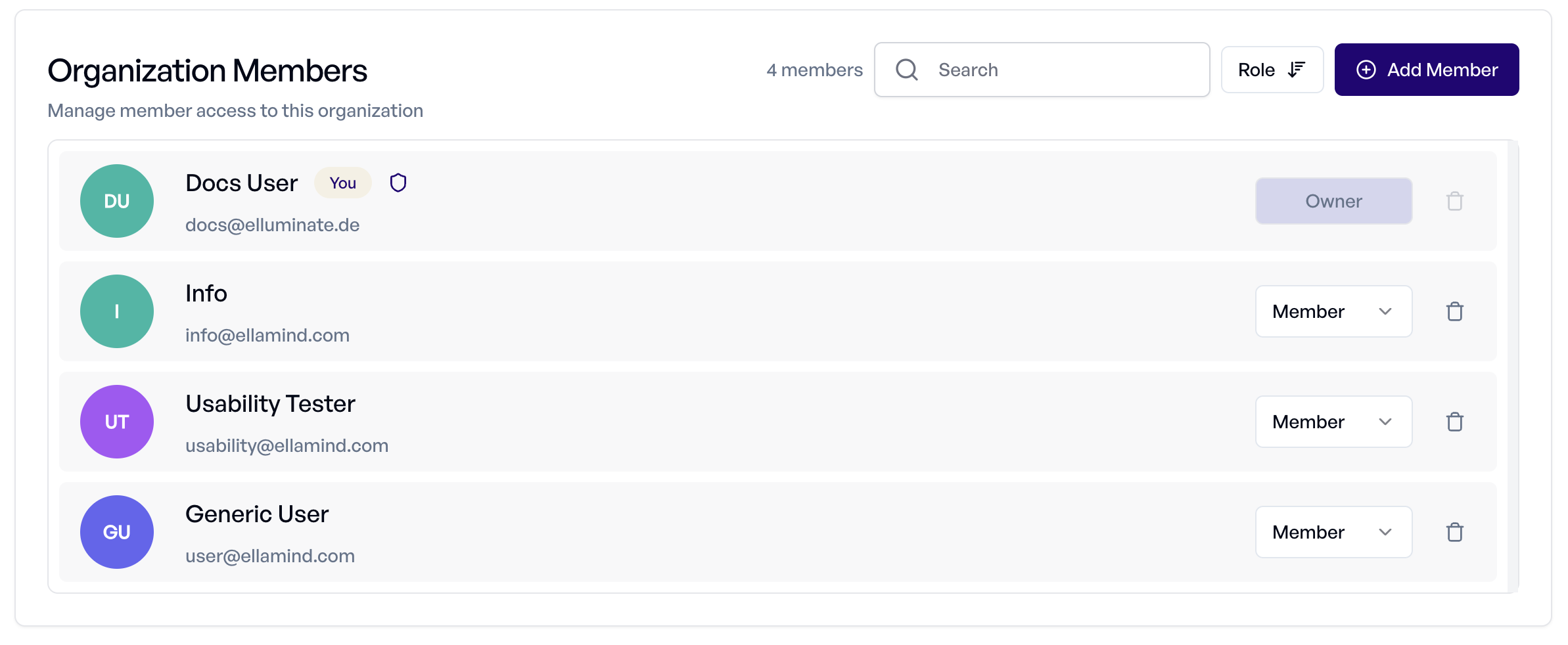
Owners and Admins can invite or remove team members and adjust their permission levels directly under Settings > Organization Settings:
- Invite Member sends an invitation email with the chosen role. The person joins the organization only after accepting it: with an existing account by signing in with the invited email address, otherwise by creating an account from the link. A new account joins every organization that has a pending invitation for its email address.
- Pending Invitations lists invitations that have not been accepted yet. Revoking an invitation makes its link invalid, and removing a member revokes the invitations they sent. Invitations expire after 30 days.
- Seat limit: if your organization has a seat limit, the number of used seats appears next to Invite Member. Members and pending invitations each use a seat; ellamind staff do not. When all seats are used, revoke an invitation or remove a member before inviting someone new; a pending invitation can still be sent again. ellamind sets the limit.
Permission Levels
| Permission | Owner | Admin | Member | Guest |
|---|---|---|---|---|
| Manage organization settings | ✓ | ✓ | ✗ | ✗ |
| Invite/remove users | ✓ | ✓ | ✗ | ✗ |
| View all projects & members | ✓ | ✓ | ✗ | ✗ |
| Access public project contents | ✓ | ✓ | ✓ | ✗ |
| List all projects in organization | ✓ | ✓ | ✗ | ✗ |
| Access private project contents* | If project member | If project member | If project member | If project member |
| Delete organization | ✓ | ✗ | ✗ | ✗ |
Note
*All roles can view the contents of a private project only if they are explicitly added as a member to that project. For more information on project visibility settings, see Project Visibility.
Projects Overview
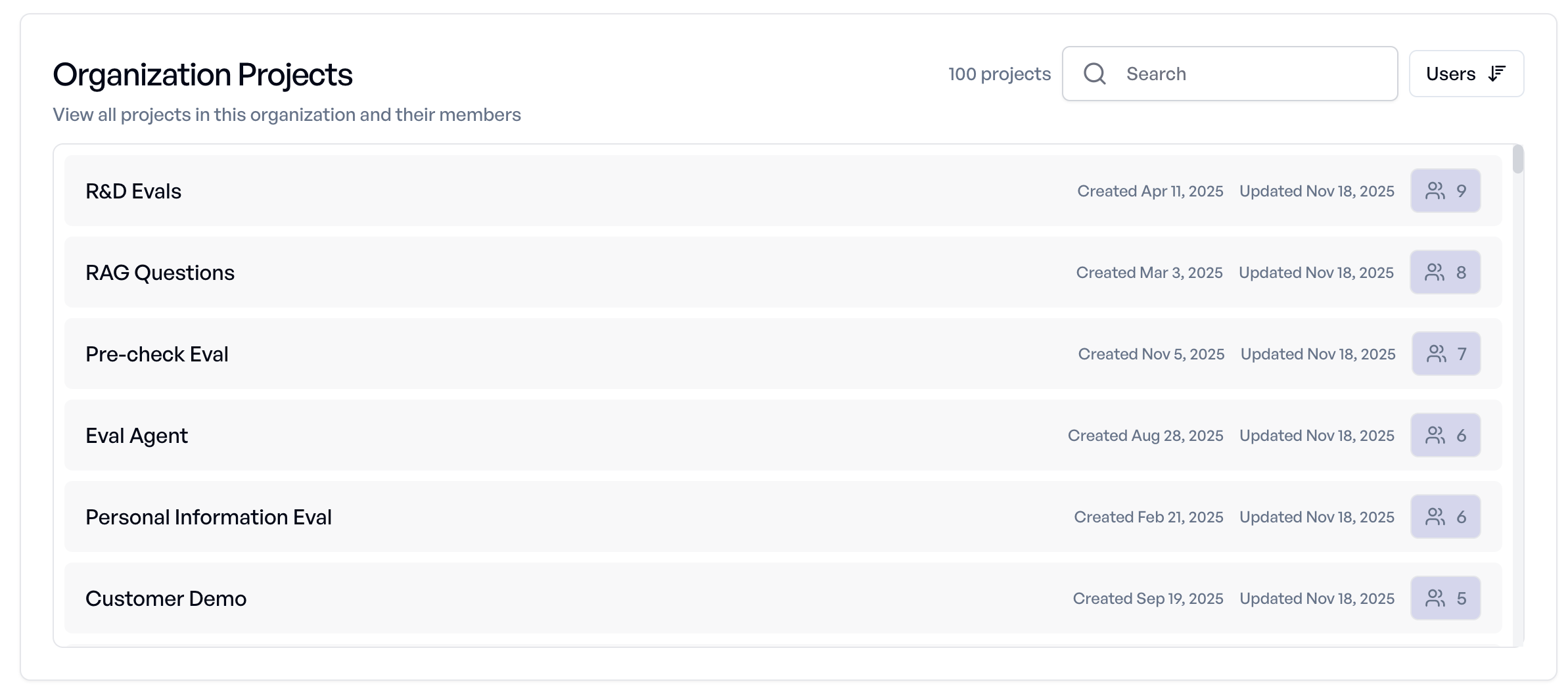
The Organization Settings page also provides a comprehensive view of all projects within your organization. Owners and Admins can see the complete project list along with each project's members, regardless of whether projects are public or private. This centralized overview makes it easy to:
- Monitor which projects exist in your organization
- Track project membership across your team
Note
Members can only see public projects and private projects where they are explicitly added. Guests can only access projects where they have been directly invited.
Deleting Organizations
Only organization Owners can delete an organization. This action is irreversible and should be approached with extreme caution.
What Gets Deleted:
- All projects within the organization
- All prompt templates, collections, and experiments
- All evaluation results and historical data
- All team member associations
Irreversible Action
Once deleted, this data cannot be recovered. We strongly recommend exporting critical data before proceeding with deletion.